

Overview
Contacts represent people you communicate with. They can belong to companies, own deals, and be assigned tasks or tickets. This guide covers creating contacts, enriching them with custom properties, and keeping records clean.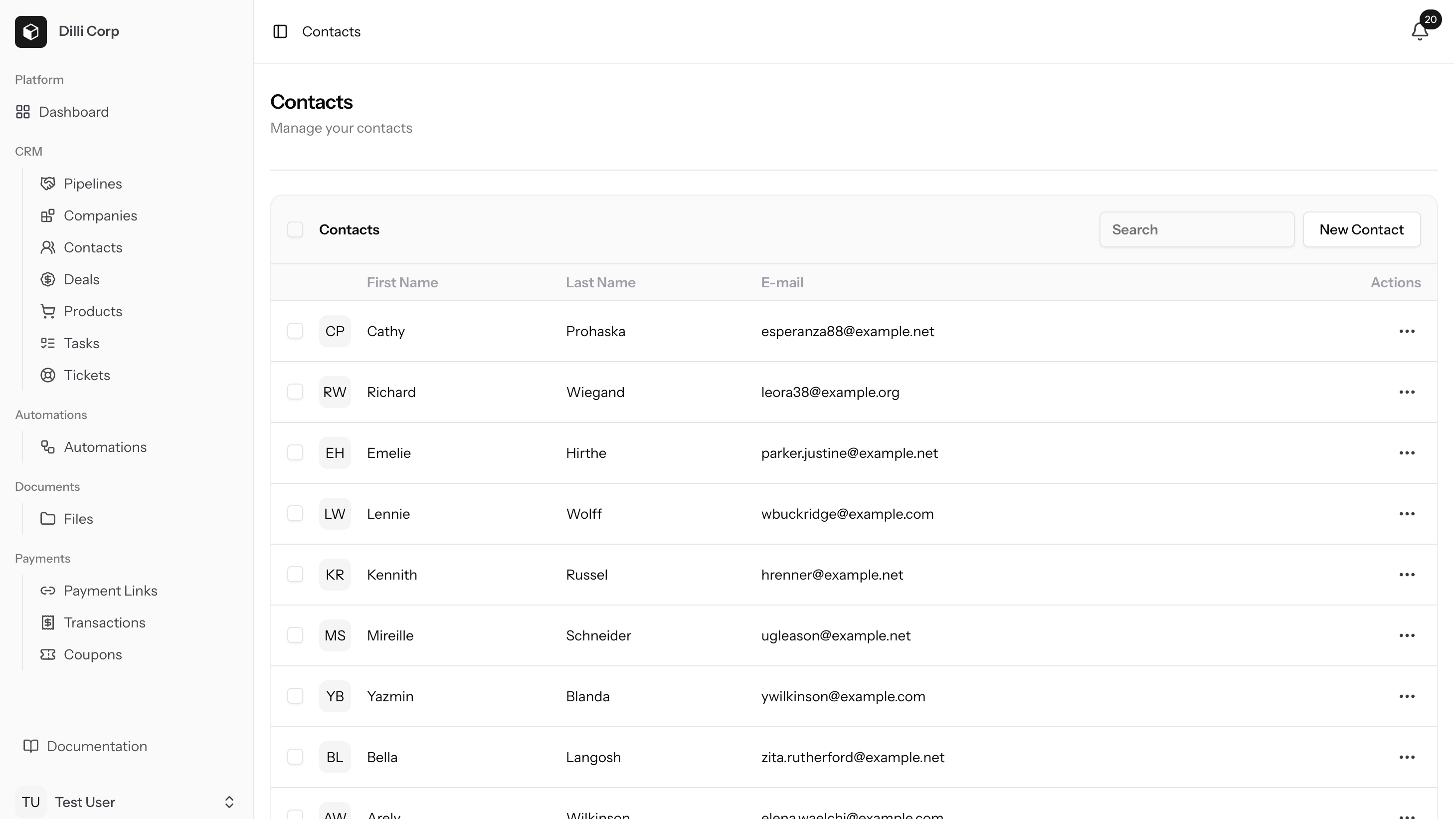
Creating contacts
- Go to Contacts -> New Contact. Add name, email, and optionally associate a company.
- Use Import to upload CSVs. Map columns to fields and preview before confirming to catch duplicates.
Custom properties
Contacts support custom properties defined in Settings -> Properties -> Contacts. Use them for role, lifecycle stage, newsletter opt-in, and more.- Add property definitions (label, type, required).
- Edit a contact and fill the new fields just like built-in ones.
Associations
- Companies: Link contacts to companies for shared context and reporting.
- Deals: Assign a contact as a stakeholder so ownership is clear.
- Tasks/Tickets: Attach tasks or tickets for follow-ups and support.
Data quality tips
- Prefer a single primary email per person.
- Normalize phone numbers and keep names consistent.
- Use duplicate checks during import to keep your list clean.
- Capture structured data in properties so you can filter and automate later.
Common workflows
- Add contacts from form submissions and review duplicates before saving.
- Auto-link a new lead to a company when their email domain matches.
- Keep contacts in sync with marketing or CRM tools via automations.